Showing posts with label sap fi. Show all posts

Tuesday, 8 July 2014

How to Post a Document with Reference in SAP

Enter Transaction code FB50 in the SAP command Field

sap fi certification exam

In the next screen, Select Goto-> Post with Reference from the SAP Standard Menu Bar 

sap fi certification questions

In the next screen , Enter the Following
  1. Enter the Reference Document Number
  2. Enter the Company Code the Document was posted
  3. Enter the Fiscal Year in Which it was posted
  4. Press Enter 

sap fi certification material

Sunday, 4 May 2014

How to Assign Field Status Variant to Company Code

Enter the Transaction code SPRO in the SAP Command Field and Press Enter

sap fi

In the next screen Select SAP reference IMG

sap fi certification

In next screen-"Display IMG"  navigate the following menu path :

SAP Customizing Implementation Guide -> Financial Accounting -> General Ledger Accounting ->Business Transactions -> G/L Account Posting ->   Make and Check Document Settings ->Assign Company Code to  Field Status Variant

sap fi certification exam

Thursday, 6 March 2014

How to Define Posting Period Variant

Enter the Transaction code SPRO in the SAP Command Field and Press Enter

sap fi certification questions

In the next screen Select SAP reference IMG

sap fi certification material

In next screen-"Display IMG"  navigate the following menu path :

SAP Customizing Implementation Guide -> Financial Accounting -> Financial Accounting Global Settings->Document -> Posting Periods -> Define Variants for Open Posting Periods

sap fi certification exam

In the next screen, Press 'New Entries' button

sap fi certification

Tuesday, 4 February 2014

How to Open and Close Periods in Posting Period Variant

Enter the Transaction Code S_ALR_87003642 in the SAP Command Field


sap fi certification

In the next screen, Position the Variant you want to maintain and account type for which you want to open or close the periods.
Change the period , with following steps
  1. Select Posting Period Variant
  2. Select Account Type
  3. Enter the Account number range for which you want to change the periods
  4. Enter the Period to Open as per the Fiscal Year Variant of the Company Code assigned to the Posting Period Variant.
  5. Enter the Period to which posting to be Open
  6. Enter Any Special Period you want to Open 

sap fi certification questions

All Other periods will remain close for posting for the Account range mentioned

Thursday, 9 January 2014

How to assign Company Code to a Fiscal Year Variant

Enter the Transaction code SPRO in the SAP Command Field and Press Enter

sap fi certification exam

In the next screen Select SAP reference IMG

sap fi certification questions

In next screen-"Display IMG"  navigate the following menu path :

SAP Customizing Implementation Guide -> Financial Accounting -> Financial Accounting Global Settings->Fiscal Years -> Assign Company Code to a Fiscal Year Variant

sap fi certification material

In the next screen , Assign Company code  in the list with the corresponding Fiscal  Year  Variant

sap fi certification

Tuesday, 3 December 2013

How to Create a Fiscal Year Variant

Enter the Transaction code SPRO in the SAP Command Field and Press Enter

sap fi certification exam

In the next screen Select SAP reference IMG

sap fi certification questions

In next screen-"Display IMG"  navigate the following menu path :

SAP Customizing Implementation Guide  Financial Accounting -> Financial Accounting Global Settings->Fiscal Years -> Maintain Fiscal Year Variant (Maintain Shortened Fiscal Year )

sap fi certification exam

In the next screen, Select  "New Entries" from the Application Toolbar

sap fi certification material

Friday, 8 November 2013

How to perform a Journal Entry Posting in SAP

This tutorial will take you through the steps involved in Posting a Journal Entry

We will take a sample business transaction for the posting.

Post General Ledger 5000 units of local currency are drawn from the house bank account in cash and put into petty cash.

Enter the transaction code FB50

sap fi certification exam

In the next screen, Enter the document date in header part

sap fi certification material

Next select button Company Code

sap fi certification exam

Saturday, 5 October 2013

How to create Financial Statement Version (FSV)

This tutorial takes you through the steps to create a Financial Statement Version   Enter Transaction code SPRO in the command field

sap fi create financial statement version(FSV)

In the next screen Select SAP reference IMG

sap fi create financial statement version(FSV)

In next screen-"Display IMG"  navigate the following menu path SAP Customizing Implementation Guide -> Financial Accounting -> General Ledger Accounting -> Business Transactions -> Closing -> Document -> Define Financial Statement Versions

sap fi create financial statement version(FSV)

In the Next Screen, Select New Entries

sap fi create financial statement version(FSV)

Saturday, 7 September 2013

How to Display Changes in G/L Account Master

Enter the Transaction Code FS04 in the SAP Command Field

sap fi display changes in g/l account master

In the next screen, Enter the Following
  1. Enter the G/L Account Number
  2. Enter the Company Code 
sap fi certification exam

In the next screen , Select the Field from the list of Changed Fields

sap fi certification material

Sunday, 11 August 2013

How to Block or Delete a G/L Account

Enter Transaction Code FS00 in SAP Command Field


sap fi how to block or delete a g/l account

In the next screen
  1. Enter the G/L Account you want to block or delete
  2. Enter the Company Code 

sap fi certification questions

For Blocking

In the next step , Press the Block button

sap fi certification material

Thursday, 4 July 2013

Posting to General Ledger

Posting payroll results to accounting is one of the subsequent activities performed after a successful payroll run. It usually takes place once each payroll period, as well as after each off-cycle payroll run. Once you have exited the payroll run, you need to post the payroll results to the appropriate GL accounts (including cost centres). GL psoting does the following-

  • Groups together posting-relevant information from the payroll results.
  • Creates summarized documents.
  • Performs the relevant postings to appropriate GL accounts and cost centers

How posting is evaluated ?

Each employee’s payroll result contains different wage types that are relevant to accounting:

  • Wage types such as standard salary, bonuses, and overtime represent expenses for the company, which are posted to a corresponding expense account.
  • Wage types such as bank transfer, employment tax, employee’s contribution to social insurance, etc. are the employer’s payables to the employee, the tax office, etc. and are posted as credits to a corresponding payables or financial account.
  • In addition, there are wage types such as the employer’s health insurance contribution, which represents an expense for the enterprise and, at the same time, a payable to the social insurance agency. For this reason, such wage types are posted to two accounts - once debited as an expense, and once credited as a payable.
  • Other types of wage types also exist, for example accruals, provisions, etc. These types of wage types are usually posted to two accounts, once debited as an expense and once credited as a provision.
sap fi certification material

Posting to General Ledger is a 2 STEP process :-


STEP 1) Create a Posting Run

Transaction: PC00_M99_CIPE

Overview:
  • This step creates a posting run based on the payroll results, with a “distinctive number”, a “run type PP”, and the accompanying posting documents.
  • The posting run ensures that payroll results for an employee are only posted once
  • Processed payroll results for an employee are flagged
  • If the posting run is successful, it gets the status “Documents Created”.
  • If the posting run is unsuccessful, it gets the status “Incorrect Documents”. Relevant error messages will appear in the Output Log.

A posting run can be executed in 3 Modes:
  • A test run without documents (T)
  • A simulation run with simulation documents (S)
  • A productive run (P)


Sunday, 9 June 2013

How To create a New General Ledger Account

Enter Transaction FS00 into the SAP command prompt  , click execute.


sap fi certification

In the Edit G/L Account Screen

Enter G/L Account no.
Company Code
Click Create.
Note , SAP provides you an option to  create a GL account with reference to another GL account. More on this later in the tutorial.

sap fi certification material

In the next screen
  1. Enter Account Group
  2. As per the type of G/L Account you are creating select either the P&L Statement Acct or the Balance Sheet Account radio button.
  3. In the Short Text field, enter a short description for the new GL account.
  4. In the G/L Acct Long Text field, enter a detailed description for the new GL account.


sap fi create a new general ledger account

  • Click on the Create/Bank/Interest tab.
  • In the Field Status Group, select a GL field status group

Wednesday, 8 May 2013

How to Create Retained Earnings Account

This tutorial demonstrates how to create Retained Earnings Account

Enter Transaction code SPRO in the command field


sap fi

In the next screen Select SAP reference IMG

sap fi certification

In next screen-"Display IMG"  navigate the following menu path :

SAP Customizing⇒Implementation Guide⇒Financial Accounting ⇒General Ledger Accounting⇒G/L Accounts ⇒Master Data⇒ Preparations⇒ Define Retained Earnings Account

sap fi certification questions

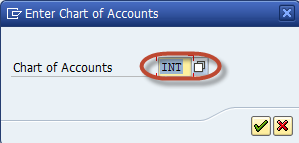
In the next screen,  Enter the Chart of Accounts to maintain the Retained Earnings Account

Sunday, 7 April 2013

How to Create Chart of Accounts (COA) Account Group

This tutorial takes you through the steps to create a COA Account Group

Enter Transaction code SPRO in the command field

sap fi certification

In the next screen Select SAP reference IMG

sap fi certification

In next screen-"Display IMG"  navigate the following menu path

SAP Customizing Implementation Guide -> Financial Accounting -> General Ledger Accounting

-> G/L Accounts -> Master Data -> Preparations -> Define Account Group

sap fi create chart of accounts account group

In the next screen, select New Entries

sap fi certification material

Saturday, 2 March 2013

Create Chart of Account

How to Create Chart of Accounts

The following tutorial takes you through the steps to create Chart of Accounts


Enter Transaction code SPRO in the command field


sap fi

In the next screen Select SAP reference IMG

sap fi certification

In next screen-"Display IMG"  navigate the following menu path :  SAP Customizing Implementation Guide -> Financial Accounting -> General Ledger Accounting -> G/L Accounts -> Master Data -> Preparations -> Edit Chart of Accounts List

sap fi certification questions

In the next screen, select New Entries

Tuesday, 5 February 2013

Create a Company and assign to Company Code

How to Create a Company Code and Assign to a Company

This is a 2 Step Process

  1. Define Company Code
  2. Assign Company to Company Code

Define Company Code

Enter Transaction code SPRO in the command field


sap fi

In the next screen Select SAP reference IMG

sap fi certification

In next screen Display IMG follow the menu path

SAP Customizing Implementation Guide -> Enterprise Structure ->Definition->Financial Accounting->Edit, Copy, Delete, Check Company Code

sap fi certification questions